
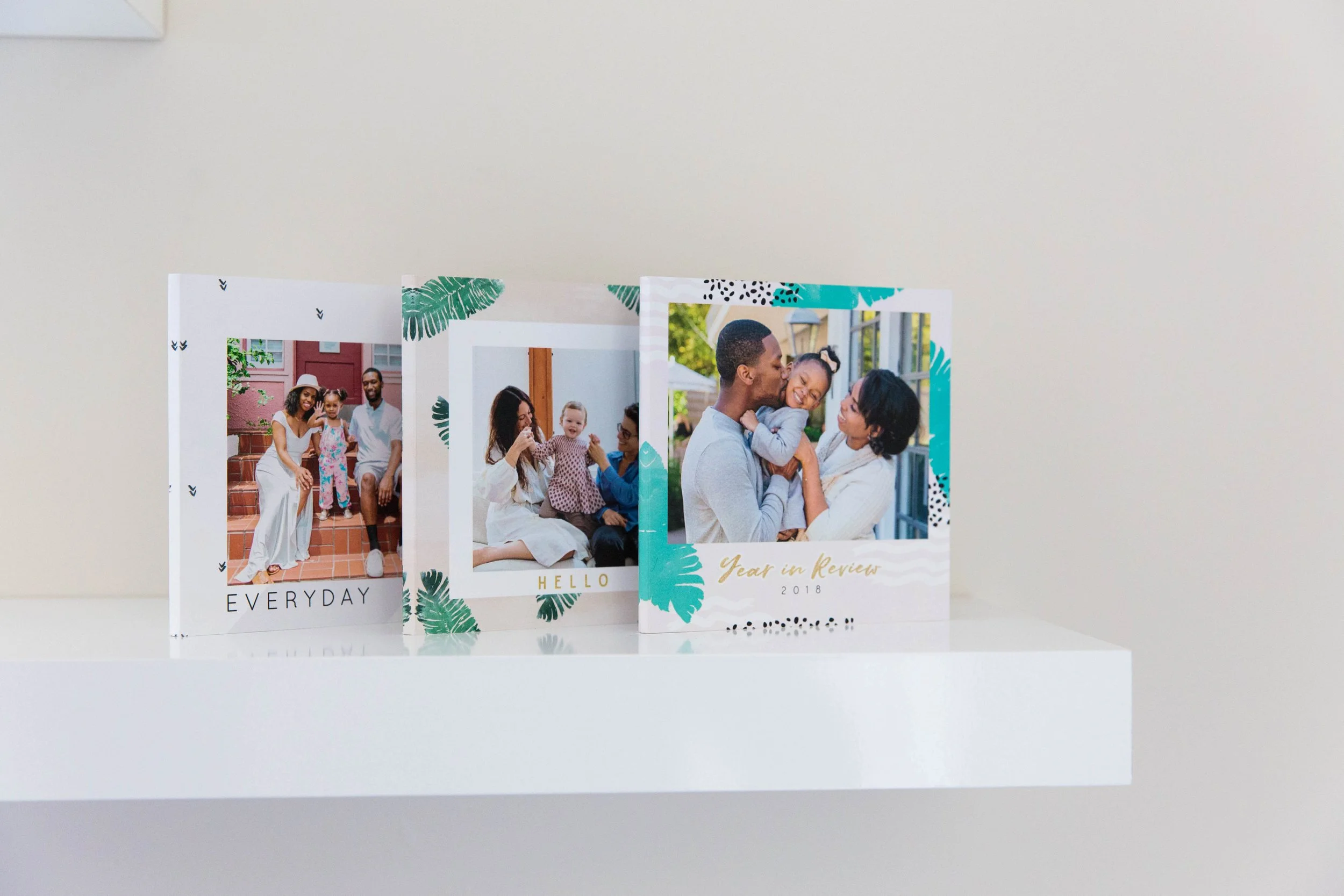
Our favorite thing about Mixbook is that you can truly make all your projects yours. Luckily, we have used Mixbook enough times to really be familiar with the editor. So, this one goes out to all our new users who want to learn how to use the Mixbook editor.
First, let us say, “Welcome!” We’ll be the first to warn you, creating projects with Mixbook can be addicting—in a good way. All your memories are preserved in beautiful books and those photos piling up on your hard drive can finally be put to good use!
Join us as we embark on a four-part quick and easy tour of the Mixbook editor.
As an introduction, familiarize yourself with the following screen shot, which shows a photo book in the editor:
We have divided the editor road map into four main stops: Customizability Tabs, Title and Option Bar, Editing Area, and the Page Tray. Stay tuned to learn more about each area as we take off on a magical journey through the Mixbook editor!


Lisa February 14, 2012 at 6:10 am
I really like the negative look at the top of this blog. I would like to use this in the photobook I am currently working on. Please let me know which theme this is under.
Thanks
Lisa
Elle Daquioag February 14, 2012 at 9:59 am
Hi Lisa,
You can find the film strip sticker in our Year in Review theme. We hope this helps!
Sammi Thielen February 20, 2012 at 1:01 pm
Can you use two different themes in one photo album book? If so, how do you do it.
Elle Daquioag February 21, 2012 at 9:28 am
Hi Sammi,
You can definitely use two, three or more themes in one Mixbook! Changing themes is a great feature we offer to allow you to make a great customized book. To do so, you will need to first open your project in the Mixbook Editor. Once the Editor opens, you will see a “Change Theme” button at the top. Click on this button to access a window where you can scroll through the different themes we offer. Once you have found the one you like, click on the orange/yellow “Change Theme” button, and it will change the theme of your project.
Please note that changing your theme does not change your whole book, but it does change the selection of layouts, backgrounds, and stickers that you can apply to the book. When you first change your theme, your existing pages will appear to look the same. You can apply layouts from your new theme by selecting the page from the bottom page preview bar, then clicking the “Layouts” tab in the top left corner of the editor. The first section of layouts that appears (“Theme Pages”) will be the layouts from your new themes. Clicking on one of these themes will apply your layout to your page. We hope this helps!
Stacey February 25, 2012 at 12:54 pm
Help! I’m new to Mixbook. I’ve used Snapfish and Shutterfly, but was excited to try out Mixbook. I’m frustrated, though, because I can’t figure out how to crop my pictures. Also, I can’t get the “drag and drop” feature figured out! I got my picture on the cover but can’t get any put on the pages. Any help would be greatly appreciated so I can get this book going! Thanks!
Elle Daquioag February 27, 2012 at 1:55 pm
Hi Stacey,
We do not have a crop tool, but you can use the zoom feature to crop photos. To zoom in or out of your photo and “crop” your photo within a specific frame, please use the slider bar in the Photo Toolbar. This will not change the size or shape of your frame but will determine how much you zoom in (or out) of a photo. To change and crop the frame, you can click and drag on the red squares that border your photo.
In regards to the drag and drop feature, you will first need to locate the photo in your photo tray. Once you have done that, click on the photo and drag it onto the page. We hope this helps!
Debbie March 2, 2012 at 12:01 am
I am having trouble understanding why the make to full page tool doesn’t seem to work. I want to spread some photos over 2 pages as well then add a couple of smaller photos to the bottom if possible. Any suggestions?
CSR March 2, 2012 at 10:15 am
Hi Debbie,
. We hope this helps! If you need further assistance, please e-mail us at support@mixbook.com!
We do have the ability to spread a photo across two pages — just resize the photo so it stretches over the two pages and make sure that the two-page spread icon is enabled. To use the two-page spread icon, please first select the photo so the gray photo toolbar will appear. On the right side of that toolbar, you will see the span icon (a landscape with two pages). Just make sure both sides of that icon have been selected and highlighted! To add another photo to your book, just drag the photo from the photo tray and place the photo where you want it to be in your book. If needed, you can then resize the photo to make it smaller
All the best,
Brianna
wendy March 8, 2012 at 5:45 am
I am also new to Mixbook and trying to make my first photobook.
If I put three photos on one page. Their original demention are slightly different. Is there a quick way to adjust them to the same demention?
Thanks.
CSR March 9, 2012 at 9:34 am
Hi Wendy,
Welcome to Mixbook! While we do not currently have the option to automatically adjust the dimensions of the photo, we do have a few other options that may help! One option is to manually resize your photo by first clicking on the element and then moving your mouse arrow to any side or corner of the element. By clicking, holding and then dragging the side or corner inward you will be able to make the element smaller. If you drag the side or corner away from the center you will enlarge the element. If you wish to have all 3 photo boxes be the exact same size, we would recommend first copying one photo box. To copy the photo, please select the object. Right click (control-click on a Mac), and then select: “Copy Selection.” Then right click where you’d like to paste your object and select “Paste Selection.” You can then replace the previous photo with the new one, so the photo boxes will all be the same size! We hope this helps! Let us know if you have any other questions
Warmest Regards,
Brianna
liseetsa May 1, 2012 at 6:51 pm
I cannot drag and drop any photo from the photo tray to the page. There is a little minus sign in red on the corner of each photo and a pop up window asked to allow access to my camera and mic–which I said NO because I think that means you could SEE ME NOW??? Also there is no way to organize photos like “kindergarten” “1st grade” etc… is there? Thanks!
liseetsa
Mixbook Customer Care Team May 2, 2012 at 10:13 am
Hi Liseetsa!
We’re sorry to hear that you are experiencing some technical issues! It may help if you update your Adobe Flash. A representative has reached out to you through email, so please check your inbox! Feel free to message us at support@mixbook.com if you have any additional questions or concerns, and we’d be happy to help you!
Best Regards,
Veronica
Marcia October 28, 2012 at 5:35 pm
I have been trying to work with mixbook. I’m working on a reunion book. The pictures do not drag. if i click on the picture it ends up on the page but not where the picture is suppose to go. It’s then very difficult to resize and move. I’m about ready to give up.
Elle Daquioag October 29, 2012 at 7:50 am
Hi Marcia,
It looks like you may need to update your Flash Player. You can do so by visiting: http://get.adobe.com/flashplayer/?no_redirect
If you have updated the Flash player and it is still not working correctly, please try and clear your internet browser’s cache. The instructions on how to do this for your particular browser can be found here:
http://www.bnl.gov/itd/webapps/browsercache.asp#
If you are still having difficulties, we would also recommend trying a different internet browser. Thank you for your patience, and we hope that this helps. If you are still experiencing the same issue, please e-mail support@mixbook.com and our tech team will continue to help troubleshoot.
Paula November 17, 2012 at 11:48 am
I started my project, and now I want to go back and add more pictures from my computer and I am having trouble. What should I do? I uploaded with no problem before I started on my book!
Mixbook Customer Care Team November 18, 2012 at 4:44 pm
Hi Paula,
It sounds like there may be more of a technical issue involved. May we ask if you have the newest version of Flash installed on your computer? You can do so by visiting: http://get.adobe.com/flashplayer/
If you have updated the Flash player and it is still not working correctly, we would recommend clearing your browser’s flash cache. The instructions on how to do this for your particular browser can be found here:
http://www.bnl.gov/itd/webapps/browsercache.asp
If you are still having difficulties, may we ask which Internet browser you are using to access your project? We’d recommend trying to access your project using Firefox or Google Chrome.
We hope this helps! If you are still experiencing the same issues, please feel free to send us an email at support@mixbook.com, and we’ll be more than happy to assist you further. :
Adrian January 3, 2013 at 1:48 am
I would like to sort the photos by “Date Taken” but with the oldest at the top. I suspect it is not possible?
The problem is that “auto fill” seems to start at the top (the newest photos) and work its way down to older photos. The resulting book is backwards in time. Or am I getting it wrong?
Mixbook Customer Care Team January 3, 2013 at 11:10 am
Hi Adrian,
By sorting your photos by “Date Taken”, the editor will sort your photos based on the date the photo was taken. They are sorted in descending order, the photos taken most recently appearing at the top, and the oldest at the bottom. At this time, our editor does not have a feature to reverse the order; however, we do appreciate your suggestion! We will definitely forward your idea to our engineering team! Please let us know if you have any additional questions, comments, or concerns, and we’d be happy to help!
Best Regards,
Veronica
Katelyn January 18, 2013 at 7:10 pm
I love Mixbook and have created many photobooks with it! I am making a new book with a lot of pictures and I am wondering if there is a way to have more than 30 pages??
Thank you
Katelyn
Mixbook Customer Care Team January 20, 2013 at 11:08 am
Hello Katelyn,
At this time, our page maximum for all our books is 399 pages. You can add a page to your project at any time by clicking on the “New Page” button in the bottom right hand corner of the editor.
If you have any other questions, please let us know! Thanks again for using Mixbook.
-Kyle
Linda January 23, 2013 at 9:11 am
I have hundreds of photos I want to use in one book. Is there any way to store them in folders to keep them separated for different sections of my book?
Mixbook Customer Care Team January 23, 2013 at 10:24 am
Hi Linda!
We do apologize for any inconvenience, but we do not have a feature in which users may store photos into multiple folders. We do appreciate your feedback, and we will pass your suggestion along to our engineering team. In the meantime, you can add photos to any of your projects and transfer photos between them. To transfer your photos, click on the “Add Photos” button and select the “My Photos” tab to browse through your other Mixbook projects for photos to transfer to your current Mixbook project. You can select individual photos or you can click “Select All” and then click the “Add Photos” button to transfer those photos. We hope this helps! Please feel free to message us at support@mixbook.com if you have any additional questions, comments, or concerns!
Cheers,
Veronica
Brianne March 28, 2013 at 11:44 am
I just started my first Mixbook. I like some of the layouts that are already their, but would like to change some of the wording inside of the fun swirly more graphic frames and boxes. Sometimes I’m able to just click on the text to change it, and sometimes I’m not. For instance, in the Chalkboard theme, I would like to change CELEBRATION to SPRING BREAK, but it won’t let me when I click on it. I can choose the add text feature, but it just goes on top of the text that’s already there. If I try to delete the text, it deletes the text and accommodating graphic. I want to keep the graphic! Help!!
Mixbook Customer Care Team March 28, 2013 at 12:39 pm
Hi Brianne!
We apologize for the confusion regarding text on stickers. While some themes contain editable text layered on top of a sticker, some text on stickers cannot be modified as they are part of the actual sticker image file. If the text editing toolbar does not pop up under the text after clicking on it once, and you are not able to edit it, then the text is a sticker and cannot be changed.
You can, however, add “Spring Break” as regular text and reformat it as you wish. To add text to your project, first click the “Add Text” button in the upper right corner of the Mixbook editor. This will create an empty text box. Click on the text box and begin typing to add your text. From there you can move, resize and rotate your text box to place your text exactly where you’d like it.
We hope this helps! Please message us at support@mixbook.com if you have any additional questions!
Cheers!
Veronica
eric March 29, 2013 at 9:27 am
I am having a hard time adding a photo to a page. I click and drag and nothing happens! I’ve even tried to copy and paste a photo that is currently on there…then attempting to change the photo in that frame to the new picture I want…with NO LUCK! Help!
Mixbook Customer Care Team March 31, 2013 at 11:56 am
Hello Eric,
Sorry to hear you are experiencing issues using the editor! It sounds like your computer may be having an issue with the Browser Cache or your Adobe Flash Plug In. Would you be able to try downloading the newest version of Flash to your computer? You can do so by visiting: http://get.adobe.com/flashplayer/
If you have updated the Flash player and it is still not working correctly, please try and clear internet browser’s cache. The instructions on how to do this for your particular browser can be found here:
http://www.bnl.gov/itd/webapps/browsercache.asp
May we ask which browser you are using? Our site works best with Google Chrome, which you can download here: https://www.google.com/intl/en/chrome/browser/
If you continue to experience issues, please let us know. Thank you for your patience and have a great week!
-Kyle
Leah April 19, 2013 at 11:43 pm
how do i know the size my photos will be when they are printed in the book? i want some of my photos to be standard size, how do i make that happen?
Mixbook Customer Care Team April 21, 2013 at 3:02 pm
Hello Leah,
At this time, we cannot provide you an accurate gauge as to how large your photos will print, as we offer various book sizes ranging from a 6 x 4″ mini to a large 14 x 11″ coffee table landscape book. Additionally, there are many differently sized monitors each displaying the Mixbook Editor at a different resolution. We suggest that you use your best judgement when designing your book to determine the appropriate sizing for your object. In the future, we do hope to include rulers and sizing information built into the editor, but we do not know when this will be available.
Thanks for your post and let us know if you have any other questions or concerns. Have a great week!
-Kyle
Angie May 25, 2013 at 6:25 am
Good Morning,
I am trying to figure out how to rotate a couple of my photos after inserting them on a page but I can’t seem to find the button. I need to rotate side ways but only flips to the opposite direction. Please help!
Thanks,
Angie
Mixbook Customer Care Team May 31, 2013 at 12:55 pm
Hi Angie!
We apologize for the delayed response! To rotate a photo, sticker, or text box, please click on the element. A circle with curved arrows on it will appear at the top of the element. You can click and hold this circle and drag it to the left or right to rotate the element.
Please feel free to contact us at support@mixbook.com if you have any additional questions!
Cheers!
Veronica