
Video Tutorial: How to Upload Photos from Facebook

by

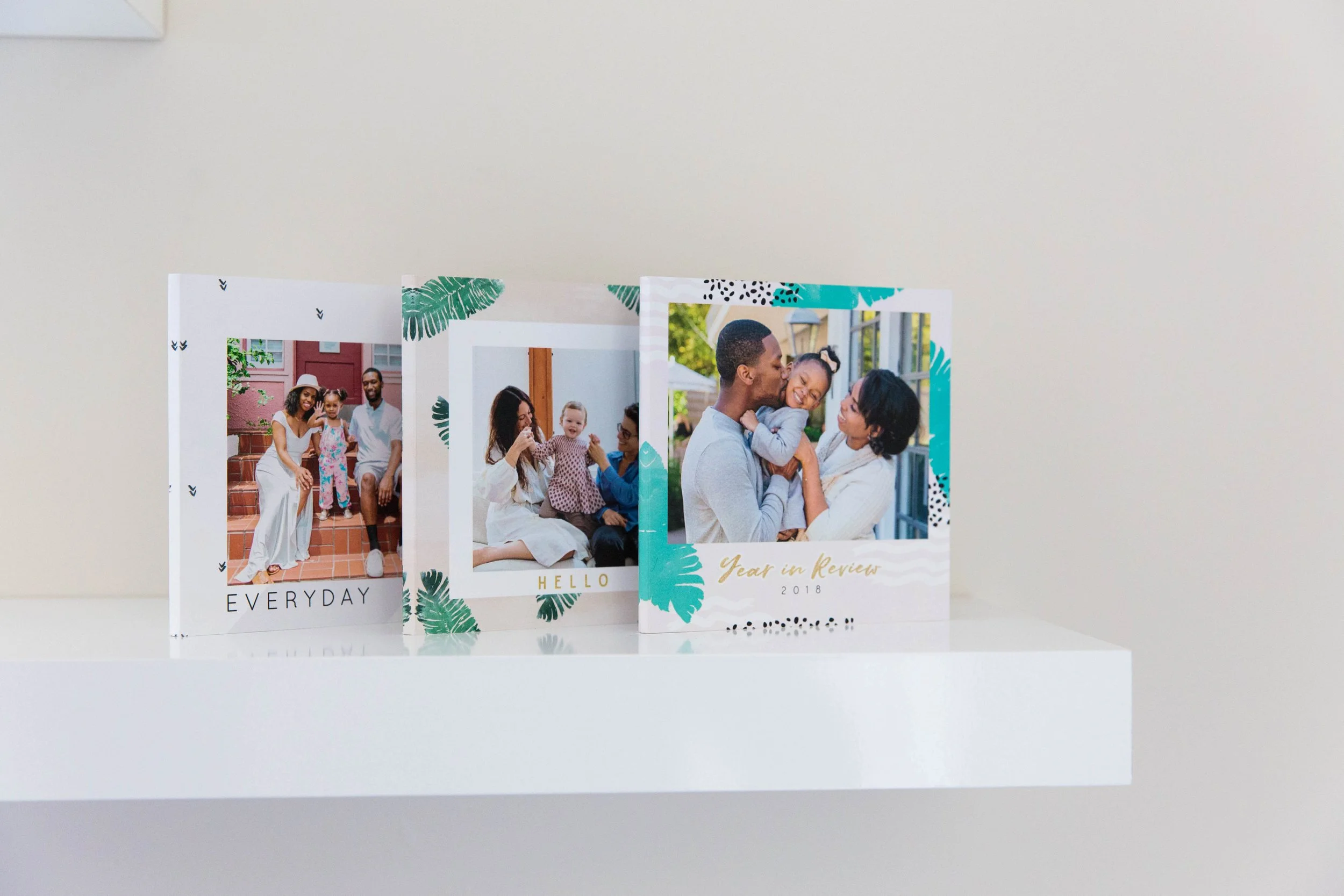
Picture this. Your BFF’s b-day is coming up in a few weeks (thanks for the heads-up, Facebook!) and you want to create a photo book on Mixbook full of heartwarming photos of the two of you together to give to her as a birthday gift. Great idea (we think she’ll adore and treasure it forever)! But wait. The memory card inside your digital camera doesn’t house any images from the wedding in which you were both bridesmaids last year.

Don’t despair! This is where Facebook comes in. No doubt there are entire albums full of photos featuring the affair, uploaded to Facebook by wedding guests, groomsmen, the shutter-happy Mother of the Bride, etc. Jackpot! All the pictures you need to create a beautiful Mixbook are available at the tips of your fingers (try our AutoMix magic wand tool to instantly populate your entire Mixbook with photos). How? View our fun tutorial video or read the below instructions to discover how to populate your Mixbook with your (and friends’) Facebook photos!

Video Transcription:

A popular question we receive is how to upload your Facebook photos into your Mixbook project. Once you have your project open, click on the “ADD PHOTOS” button from the photos tab. In the window that pops up, click on “Import Photos” and then “Facebook” from the left-hand side. Clicking “CONNECT” will open up a pop up window. Log into your Facebook account.

Once you have clicked the “Log In” button, the page will reload telling you to close this window. Close this window and return to our editor. You will notice that the button has now turned into a “Continue” button. Clicking on this will get you to your photos.

From here, you can select different friends, and then select the album from which you would like to retrieve your photos. Choose the photos you would like to upload, click on “Add Selected Photos”, and they will be automatically entered into your photo tray. Please note that if their privacy settings are set to private, our editor will not be allowed to access those photos.

Hope this helps!


{ 2 comments… read them below or add one }

diana metzger February 1, 2012 at 11:31 pm

I would love it if we could mix thepages from one album with another. So for example. Is it possible to a few pages from the Halloween books mixed with some Thanksgiving. Then Christmas pages? I have not found a way to bring pages from other designed books to a different book. I scrapbook the months so it would be nice to have the option or picking the theme pages!.

Elle Daquioag February 2, 2012 at 9:54 am

Hi Diana,
You can definitely mix and match your themes to make the perfect book! To do so, you will need to first open your project in the Mixbook Editor. Once the Editor opens, you will see a “Change Theme” button at the top. Click on this button to access a window where you can scroll through the different themes we offer. Once you have found the one you like, click on the project then click the orange/yellow “Change Theme” button. This will change the theme of your project.

Please note that changing your theme does not change your whole book, but it does change the selection of layouts, backgrounds, and stickers that you can apply to the book. When you first change your theme, your existing pages will appear to look the same. You can apply layouts from your new theme by selecting the page from the bottom page preview bar, then clicking the “Layouts” tab in the top left corner of the editor. The first section of layouts that appears (“Theme Pages”) will be the layouts from your new themes. Clicking on one of these themes will apply your layout to your page. We hope this helps! If you have any further questions, feel free to e-mail us at support@mixbook.com!

Leave a Comment

Previous post:

Next post: